Help & Support Center

Find answers, troubleshoot issues, and get the most out of your hospitality training

Getting Started

How to create your FNBMaster account

Step-by-step guide to register and set up your learner profile.

Creating your FNBMaster account is simple and takes less than 2 minutes. Visit the registration page at fnbmaster.com/register. Enter your full name, select your country code, provide your mobile number, and create a strong password with at least 8 characters including uppercase letters, numbers, and special characters. Choose your preferred learning language from 7 Indian languages. Once registered, you will receive a unique FNBM ID that serves as your permanent learner identifier. Your account is approved instantly, and you can begin learning immediately.

Navigating the dashboard

Understanding your learning dashboard, progress tracking, and key features.

The FNBMaster dashboard is your central learning hub. Upon login, you will see your greeting with your FNBM ID, an AI Coach section with daily learning goals and streak tracking, and quick access to continue watching where you left off. The dashboard displays your XP points earned through gamification, badges collected, and key performance indicators including courses started, videos watched, and certificates earned. Action cards provide quick access to continue learning, take quizzes, browse modules, and view certificates. The bottom navigation bar on mobile provides easy access to Home, Courses, Games, Certificates, and Profile sections.

Choosing the right plan

Compare Individual, 3-Bundle, 5-Bundle, and Enterprise plans.

FNBMaster offers flexible pricing plans designed for different needs. The Individual plan at ₹499 provides access for 1 staff member with all 9 modules, digital certificate, and basic dashboard — perfect for individual learners. The 3-Bundle plan at ₹1,399 covers up to 3 staff members with team dashboard, digital certificates, and email support at just ₹466 per staff. The 5-Bundle plan at ₹2,299 is our most popular option covering up to 5 staff with advanced analytics, role assignments, and priority support at only ₹460 per staff. For larger organizations, the Enterprise plan offers unlimited staff, custom modules, API access, dedicated manager, and white-label options with custom pricing. All plans are one-time payments with lifetime access — no subscriptions, no renewals.
View all 4 articles →

Account & Login

Login with mobile number

How to log in using your registered mobile number and password.

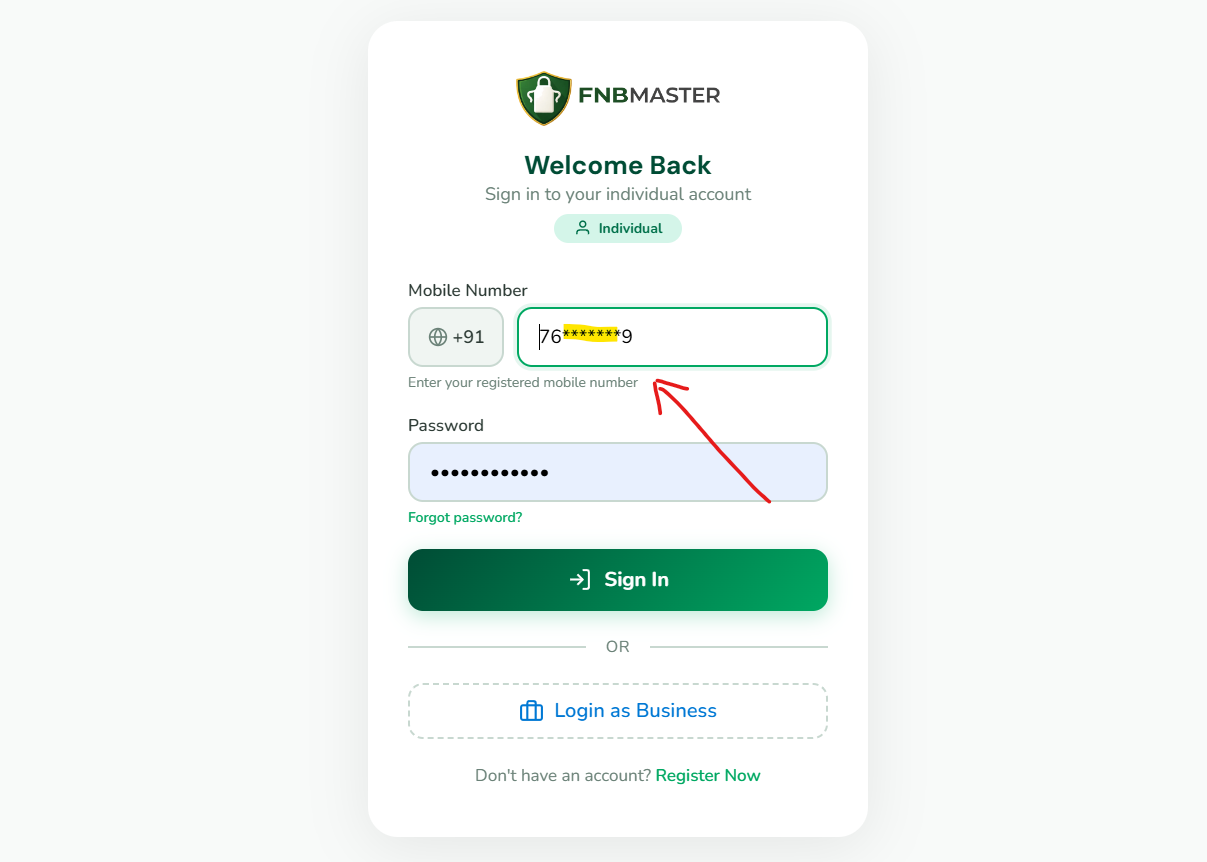
To log in to FNBMaster, visit fnbmaster.com/login. Select your country code from the dropdown (16 countries supported including India +91, UAE +971, USA +1, UK +44, and more). Enter your registered mobile number without the country code. Type your password and click Login. The system supports multiple mobile number formats for flexibility. If you registered with +91 9876543210, you can also log in with 9876543210 or 919876543210. Upon successful authentication, you will be redirected to your dashboard. Your session remains active for 24 hours for convenience.

Country code selection

Selecting the correct country code for international mobile numbers.

FNBMaster supports learners from 16 countries. On the login and registration pages, you will find a country code dropdown next to the mobile number field. Available countries include India (+91), UAE (+971), USA/Canada (+1), UK (+44), Saudi Arabia (+966), Qatar (+974), Oman (+968), Bahrain (+973), Kuwait (+965), Singapore (+65), Malaysia (+60), Australia (+61), Philippines (+63), Sri Lanka (+94), Bangladesh (+880), and Nepal (+977). Each country has its own mobile number format and validation pattern. Selecting the correct country ensures proper mobile number formatting and validation. The format hint below the input field updates dynamically when you change the country.

Password recovery

Steps to recover or reset your forgotten password.

If you forget your password, contact our support team at support@fnbmaster.com from your registered email address. Provide your full name, registered mobile number, and FNBM ID if available. Our team will verify your identity and assist with password recovery. For security reasons, password resets require identity verification. Once verified, you will receive instructions to set a new password. Always use strong passwords with at least 8 characters including uppercase letters, numbers, and special characters. Avoid using easily guessable information like birthdays or common words.
View all 5 articles →

Training & Courses

How to access training modules

Finding and starting your hospitality training courses.

After logging in, click on "My Courses" in the sidebar or navigate to the Courses section from the bottom navigation on mobile. You will see all 9 available modules displayed in a grid layout. Each module card shows the module number, title, and metadata including video count, scenario count, and certificate availability. Click on any module to select your preferred learning language, then begin watching the video lessons. Modules can be taken in any order — there is no fixed sequence. You can start with Module 7, jump to Module 2, then Module 5 based on your learning needs.

Module structure explained

Understanding videos, scenarios, and assessments in each module.

Each of the 9 FNBMaster modules contains 16 professional HD video lessons organized into specific learning sections. The module structure includes 1 introduction video that provides an overview, 5 scenario-based learning sections each containing 10 key point videos (totaling 50 videos per section approach), and 1 conclusion video summarizing the learning. Each module also includes 5 scenario-based assessments to test your understanding. In total, the platform offers 549 HD video lessons across all modules. Videos are designed to be concise (3-7 minutes each) for easy consumption during breaks or on the go.

Learning in your preferred language

Switching between 7 Indian languages for course content.

FNBMaster supports 7 Indian languages: English, हिन्दी (Hindi), தமிழ் (Tamil), తెలుగు (Telugu), ಕನ್ನಡ (Kannada), മലയാളം (Malayalam), and বাংলা (Bengali). You can switch languages at any time — even between different sections within the same module. This flexibility allows learners to study complex topics in their most comfortable language. Language switching is available from the video player, the language pills on the landing page, and the language selector in the header. All 7 languages are included in every plan at no additional cost. New languages are being added regularly.
View all 5 articles →

Certificates & Verification

How to earn a certificate

Requirements for completing a module and receiving certification.

To earn a certificate for any module, you must complete all 16 video lessons within that module and pass the 5 scenario-based assessments. Each video must be watched to at least 80% completion. Once all requirements are met, your certificate is automatically generated and available in your dashboard under "My Certificates." You can earn up to 9 individual certificates — one for each module. Each certificate displays your full name, the module completed, completion date, a unique FNBM ID, and a QR code for verification. Certificates are permanent and never expire.

Downloading your certificate

How to download and save your certificate as a PDF.

Once you have earned a certificate, you can download it as a high-quality PDF from your dashboard. Navigate to "My Certificates" or click the certificate icon on any completed module. Click the "Download PDF" button to save the certificate to your device. The PDF is formatted for printing on A4 paper and includes all verification details. You can download your certificates anytime — they remain accessible for life. Certificates can be printed for display at your workplace, attached to job applications, or shared digitally with employers.

Verifying a certificate

Using the Verify page to check certificate authenticity.

Every FNBMaster certificate can be verified online for authenticity. Visit fnbmaster.com/verify and enter either the Certificate ID or the learner's FNBM ID. The verification page will display the certificate details including the learner's name, module completed, completion date, and validity status. Each certificate has a unique QR code that can be scanned with any smartphone camera to instantly verify authenticity. This verification system ensures that employers and organizations can trust the credentials presented by FNBMaster graduates.
View all 5 articles →

Pricing & Billing

Understanding our pricing plans

Detailed breakdown of Individual, Bundle, and Enterprise pricing.

FNBMaster offers four pricing tiers. The Individual plan (₹499) provides 1 staff member access to all 9 modules with a digital certificate and basic dashboard. The 3-Bundle plan (₹1,399) covers up to 3 staff with team dashboard, digital certificates for each staff member, and email support — costing only ₹466 per staff. The 5-Bundle plan (₹2,299) is our most popular option covering up to 5 staff with advanced analytics, role assignments, digital certificates, and priority support at ₹460 per staff. The Enterprise plan offers unlimited staff with custom modules, API access, dedicated manager, white-label options, and 24/7 support with custom pricing. All plans are one-time payments with lifetime access — no monthly subscriptions, no annual renewals, no hidden fees.

One-time payment explained

All plans are one-time payments with lifetime access.

Every FNBMaster plan is a single one-time payment. There are no monthly subscriptions, no annual renewals, and no automatic charges to your card. Once you pay, you have lifetime access to all content — forever. This includes all 9 modules, all 7 languages, all certificates, and any new content or languages we add in the future. You will never be asked to pay again. This pricing model is designed to make professional hospitality training accessible and affordable for individuals and businesses across India.

Upgrading your plan

How to upgrade from Individual to Bundle or Enterprise plans.

You can upgrade your plan at any time. To upgrade from Individual to a Bundle plan or from a Bundle to Enterprise, contact our support team at support@fnbmaster.com. You only pay the difference between your current plan and the new plan. For example, if you purchased the Individual plan at ₹499 and want to upgrade to the 5-Bundle at ₹2,299, you would only pay ₹1,800 (the difference). All your existing progress, certificates, and data are preserved during the upgrade. Team features become available immediately upon upgrade.
View all 5 articles →

Business & Enterprise

Registering your business

How to create a business account for team training.

To register your business, visit business.fnbmaster.com/register. Provide your business name, owner name, outlet type (hotel, restaurant, café, cloud kitchen, etc.), established year, city, and contact details. Choose the plan that fits your team size. After registration, you will receive access to the business dashboard where you can manage staff, track progress, and monitor training completion. Business accounts include team management features not available in individual accounts. The registration process takes approximately 5 minutes.

Adding staff members

Managing team members and assigning training modules.

From your business dashboard, click "Add Staff" to invite team members. Enter each staff member's full name, mobile number, role, and a temporary password. Staff members can log in with their credentials and access all assigned modules. You can add staff individually or use the bulk import feature for larger teams. Each staff member gets their own dashboard, progress tracking, and certificates. The number of staff you can add depends on your plan — Individual (1), 3-Bundle (3), 5-Bundle (5), or Enterprise (unlimited). You can deactivate and reactivate staff as needed.

Team dashboard overview

Monitoring team progress, analytics, and completion rates.

The business dashboard provides comprehensive team analytics. View overall statistics including total staff, completed modules, in-progress modules, and certificates earned. See individual staff progress with completion percentages and status indicators (Trained, Learning, New). Monitor recent activity including certificate achievements. Track gamification leaderboards showing points, badges, and rankings. The FSSAI Audit card shows compliance readiness. Export reports for compliance documentation. Filter and sort team data by various parameters. The dashboard updates in real-time as staff complete modules.
View all 5 articles →

Technical Support

Troubleshooting common issues

Solutions for browser, device, and connectivity problems.

If you experience issues with FNBMaster, try these troubleshooting steps in order: 1) Refresh your browser page. 2) Clear your browser cache and cookies. 3) Restart your device. 4) Check your internet connection — try loading another website to confirm connectivity. 5) Try accessing from a different browser (Chrome, Firefox, Safari, or Edge). 6) Try accessing from a different device (phone, tablet, or computer). 7) Disable browser extensions that may interfere. 8) Ensure your browser is updated to the latest version. Most issues can be resolved with these basic troubleshooting steps.

Video playback issues

Fixing buffering, loading, or playback errors.

FNBMaster videos are hosted on Vimeo for reliable playback. If videos are buffering or not loading: Check your internet speed — a minimum of 1 Mbps is recommended for smooth playback. Try reducing video quality if your connection is slow. Clear your browser cache. Disable any VPN or proxy services. Try a different browser. Videos are optimized for mobile networks and should work on 3G/4G connections. If the issue persists, try switching to a different language version of the video. Contact support if videos consistently fail to load.

Mobile app installation

Installing FNBMaster as a PWA on your mobile device.

FNBMaster is available as a Progressive Web App (PWA) that can be installed on your mobile device. When you visit fnbmaster.com on your mobile browser, you will see an "Install FNBMaster App" prompt at the bottom of the screen. Tap "Install" to add the app to your home screen. On Android, you can also tap the menu (three dots) in Chrome and select "Add to Home Screen." On iOS, tap the Share button in Safari and select "Add to Home Screen." The PWA provides a full-screen app experience with offline access to downloaded content, fast loading, and push notifications.
View all 5 articles →

Frequently Asked Questions

How do I reset my password?
Contact support@fnbmaster.com from your registered email address. Provide your full name, registered mobile number, and FNBM ID if available. Our team will verify your identity and assist with password recovery. For security reasons, password resets require identity verification.
Can I switch languages while learning?
Yes! FNBMaster supports 7 Indian languages: English, हिन्दी, தமிழ், తెలుగు, ಕನ್ನಡ, മലയാളം, and বাংলা. You can switch languages at any time — even between different sections within the same module. Language switching is available from the video player and the language selector.
How long do I have access to courses?
All FNBMaster plans include lifetime access. Pay once, learn forever with no subscriptions, no renewals, and no expiry dates. This includes all future content updates and new language additions at no extra cost.
How do I verify a certificate?
Visit fnbmaster.com/verify and enter either the Certificate ID or the learner's FNBM ID. The verification page displays certificate details including the learner's name, module completed, completion date, and validity status. You can also scan the QR code on any certificate for instant verification.
What payment methods are accepted?
We accept UPI (Google Pay, PhonePe, Paytm), credit/debit cards (Visa, Mastercard, RuPay), net banking from all major Indian banks, and popular digital wallets. All payments are processed securely through our payment gateway.
Is there a free trial available?
Yes! The Starter plan is completely free forever with no credit card required. It includes 9 introductory videos and access in 1 language. This allows you to explore the platform and experience the training quality before upgrading to a paid plan.
How do I contact customer support?
You can reach our support team by email at support@fnbmaster.com or by phone at +91 6385 861144. Support is available during business hours (Monday-Saturday, 9 AM to 7 PM IST). Enterprise customers have access to priority support and dedicated account managers.
Can I access FNBMaster on multiple devices?
Yes! FNBMaster works on all devices — smartphones, tablets, laptops, and desktops. Your progress syncs across devices, so you can start learning on one device and continue on another. There is no limit to the number of devices you can use.

Still Need Help?

+91 6385 861144

Our support team is available Monday-Saturday, 9 AM to 7 PM IST